
Some Windows users are experiencing problems playing MP3 audio using the open source VideoLAN VLC player. In fact, there can be a noticeable delay, in some cases over 30 seconds, from the time the archive is launched to the time playback begins. Player developers believe the problem is caused by a bug in Windows Defender.
Image Source: Windows Latest
In this context, game designer and programmer Jonathan Blow said that he switched from VLC to the built-in Windows Media Player because the first one became very slow. He also added “A large portion of open source software is now in a truly deplorable state”.
There have been other comments criticizing VLC on the Internet, so VideoLAN cannot ignore the situation. The developer of the player said that the problem appeared after an update to the Windows Defender security tool built into Windows 11, after which it began to interfere with the caching of VLC plug-ins. However, you can find messages online from Windows 10 and Windows 11 users who are experiencing the above issues.
VLC claims that the 33-second playback delay is caused by Windows Defender. Interestingly, the criticism of VLC has to do with audio playback, rather than the videos that are typically associated with the player. With developers pointing to caching issues as the reason for slow playback, Blow asked VideoLAN why the player needs caching when processing a single MP3 file.

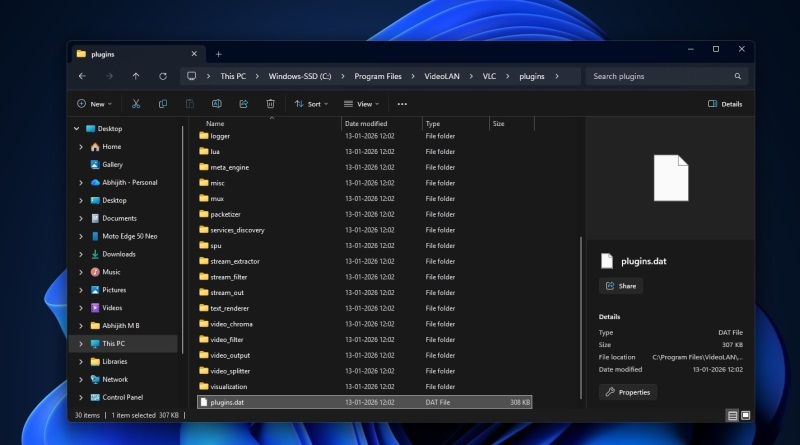
It turns out that VLC consists almost entirely of plugins, which is why the different components are not consolidated into a single executable, but loaded on demand. A complete list of components is provided in the plugins.dat file. Use caching so that a complete scan of all components is not required each time a media file is opened. This is a reasonable solution, but it’s when something like Windows Defender comes between VLC and Archives that the problem arises. The player also has a tool called vlc-cache-gen.exe that can restore the cache, and according to the developer, running the archive or reinstalling VLC should fix the problem.
The issue has attracted the attention of portal enthusiasts Windows Latesthe checked the public VLC bug tracker and the situation was not clear. This bug report shows that the problem is not limited to Windows 11. A forum thread related to slow startup of VLC on Windows has been around for over a year.
One user described a 24-second delay when first launching the player, which disappeared with further use, then reappeared if he didn’t use VLC for a while. However, users often report that restoring the cache does help resolve the issue.

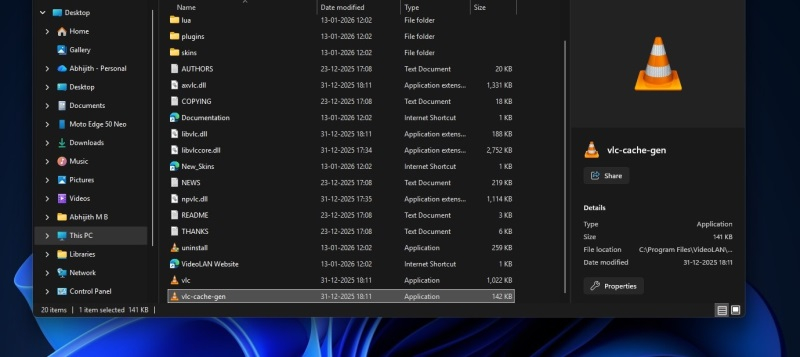
However, the author of the original issue report believes that the current issue is not cache-related. He reported that the plugins.dat file was already present on both affected computers, and when he replaced it with a known working file, the startup delays disappeared. This is a completely new crash scenario, so VLC developers will have to study the issue in more detail and continue to figure out how the VLC cache and Windows Defender interact.
Eventually, one VLC developer concluded that Windows Defender was causing the slowdown and would do so regardless of the state of the plugin cache. Another developer stated that the issue has been resolved as restoring the cache is a viable option for him. They are both correct, but for the situations pointed out by different users. Some people find that excluding the entire VLC folder from Windows Defender solves the problem, while excluding vlc.exe does not. This suggests that Microsoft antivirus software is indeed involved, although the exact mechanism has not yet been determined. Therefore, the developer’s statement cannot be regarded as an excuse, but it is not completely clarified.
Those who experience long loading times with VLC when playing audio should try to restore the player’s plug-in cache using the vlc-cache-gen.exe file, or reinstall the application using the official distribution to re-establish the cache. According to user reports, excluding the entire VLC folder from Windows Defender scans can also help in some cases.
If you find an error, select it with your mouse and press CTRL+ENTER.