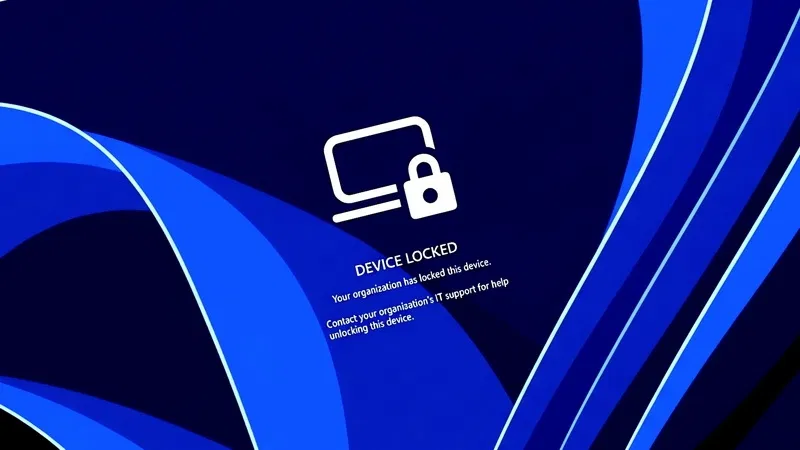
Microsoft has begun testing a new feature that allows IT administrators of corporate networks to remotely lock stolen or lost Windows devices without deleting data from them.
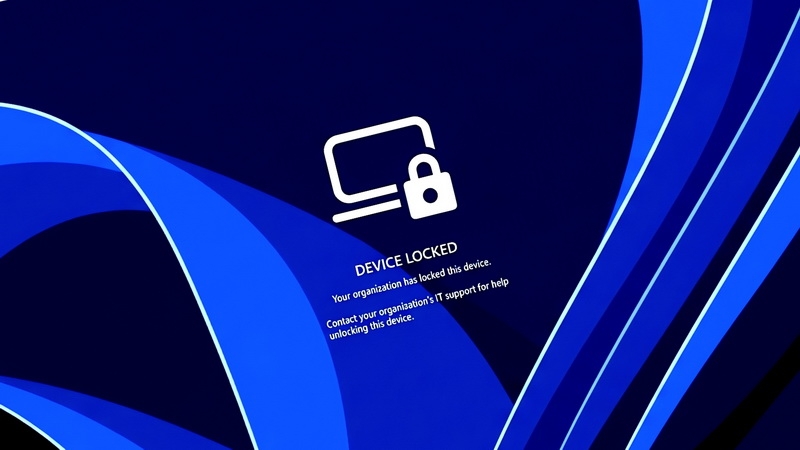
Image source: Bleeping Computer
According to Bleeping Computer, a feature called “Remote Lock” has become available on devices updated to Windows 11 Insider Preview versions in the Beta (build 26320.10003) and Experimental (build 26340.10013) channels.
Administrators can use custom configuration profiles in Microsoft Intune to block devices joined to a Microsoft Entra (or hybrid domain), as well as devices enrolled in mobile device management (MDM). Remote Lock is supported in Windows Enterprise, Education and Pro editions.
Once a device is locked remotely, it can only be unlocked through Intune. The use of PINs, passwords, local administrator accounts, or web login will no longer be possible. Microsoft clarifies that the user’s credentials remain valid. They can still be used to log into other devices that haven’t been locked.
“Windows ends all active sessions, hides all sign-in options, and displays the lock screen. Data is not deleted: the device remains enrolled in the management system, BitLocker protection continues to work, and user files remain in place. The lock remains even after a reboot or when there is no network connection. Only an administrator can remove it remotely, after which the user can continue working from the same place where he left off,” explained Stephen Lines, head of communications for the Windows Insider program.
Administrators can lock a device through the Intune admin center by following these steps:
Go to the “Devices” section > Windows > “Configuration” > “Create” > “New policy”. Select Windows 10 and later, then Templates > Custom. Then you need to name the profile (for example, “Remote Lock – ON”) and add the necessary parameters by setting LockState = 1. Then you need to assign this profile to the group for locked devices. To block a device, it must be added to this group. The blocking will take effect the next time the device communicates with the management server. To unlock, you need to create a second profile, setting LockState = 0, and assign it to the unlock group. Then you need to move the device from the blocking group to the unlocking group.
After activating the Remote Lock feature, the device is not isolated from the corporate network, and the data on it is not deleted. To do this, administrators need to take advantage of the device isolation and wipe features in Intune. However, users should keep BitLocker enabled to protect data in the event of a system reimaging or disk removal, as features such as the Windows Recovery Environment, Safe Mode, and booting from a USB drive or other external media are still available.
In the latest preview versions of Windows 11, Microsoft has also begun testing new enhanced security key management features that allow users to view and manage individual security keys stored in FIDO2 (Fast Identity Online 2). These new capabilities allow administrators to configure enterprise settings such as required user verification, minimum PIN length, and enterprise attestation.
In August, Microsoft announced new privacy tools that let Windows 11 users choose which desktop apps are allowed access to their microphone, camera, and location data.
If you notice an error, select it with the mouse and press CTRL+ENTER.